
Last updated - June 8, 2026
Prerequisites
Before you get started with Microsoft user syncing, you should note the following:
We recommend using a generic email address rather than a personal account for syncing.
However, if this is an existing, shared email address, the account cannot be blocked from signing in.
- Exist as an Admin user in the Secure Schools platform in every organisation
- Have the ability to view users and groups
- Be set as an Application Administrator and Cloud Application Administrator.
- Not be blocked from signing-in (as detailed above)
- Be the same account you're logged into Secure Schools with
You can select a group from Security Groups or Distribution Groups, but Microsoft 365 Groups are not supported.
External: Microsoft 365 Group Types
Accessing the settings
While logged in to the Secure Schools platform with an account set up as outlined above, navigate to Manage user sync and then open Connection settings at the top. This will open the Manage your connections page.
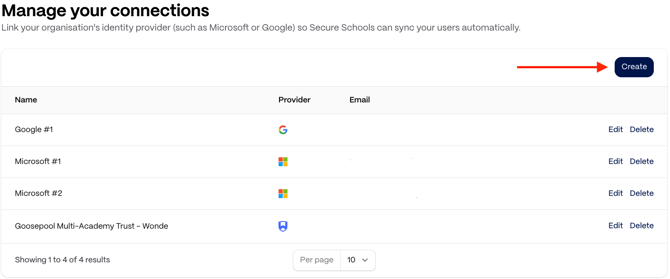
Manage your connections
Your connections are the links to your chosen tenancy for user syncing; they can be reused as many times as necessary. Select Create to establish a new connection
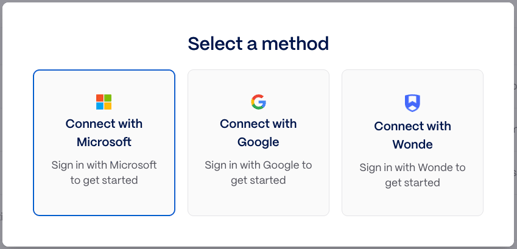
When the Select a method pop-up opens, select the appropriate option for your organisation. In this article, we're covering Microsoft, so choose that.
Once you've gone through the validation based on your setup, we can then move on to Connection groups.
Connection groups
Wonde connections automatically complete this setup for you.
Connection groups are where you associate your organisations with the connections you've established in the step above. You're able to select from your Microsoft groups and any OUs you may have with Google as well.
To configure your groups:
-
Select Create
-
Select the connection and school you'd like to associate this with.
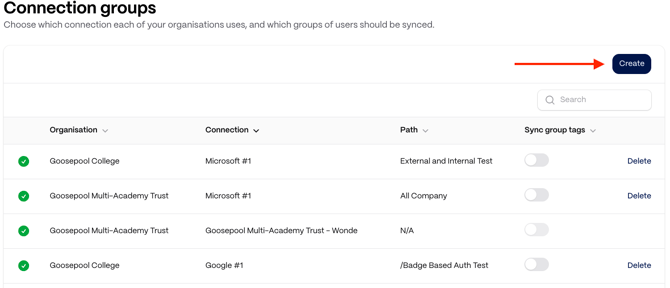
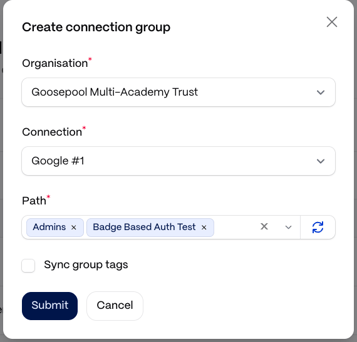
Once you've established your connections, the sync will begin.
User Sync
While a sync automatically runs approximately every four hours, you can also trigger a sync manually by clicking Sync all.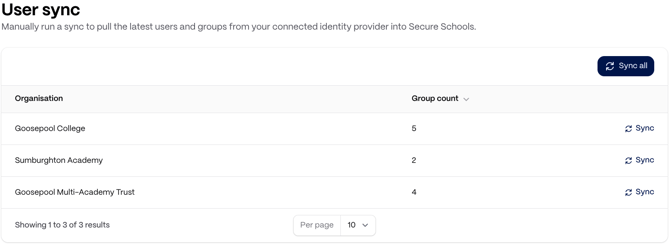
Troubleshooting
If you are returned to the platform after logging in to your account without being prompted to select the groups to sync, there may be a mismatch in the accounts used to sign in and connect.
To address this, confirm:
- The account you're using must already exist in all organisations on the Secure Schools platform. You can add them via the Manage users option.
- You signed in to Secure Schools with the exact account you used to connect to your Microsoft tenancy. This cannot be a rerouted account, etc. and must match exactly.
For example, if you're using "secure-schools@mydomain.com," this must be the account you've signed into on the Secure Schools platform. - If you've previously signed in to another account in your browser, this setting can sometimes persist even in a private browsing window. You can try using another browser that is not connected to another Microsoft account or ensure the other account is completely signed out of the browser.
If you are still having issues, please contact our support team.