
To set up your first automation, navigate to the Automations menu icon and select Create automation.
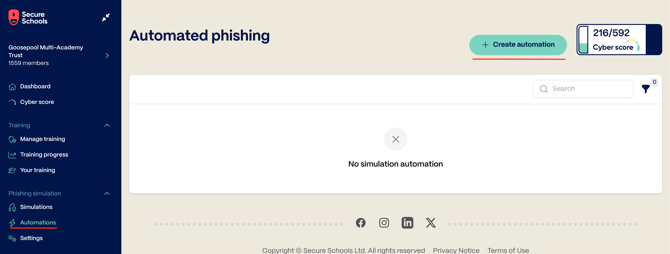
From this menu, the setup will look similar to a one-time phishing simulation. The two key differences are selecting your Start date and your Simulation dates.
For example, if you select January 9 as the start date, the simulation dates will automatically adapt to reflect the day of the week and where that date falls within the month.
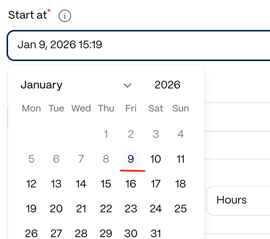
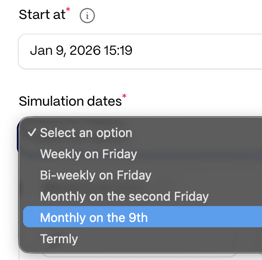
After selecting your simulation frequency, you'll be presented with the simulation template selection screen. We recommend selecting a wide variety of templates to ensure your users get a variety of templates over the course of your automation. The templates can be changed at a later date if required.
After selecting your templates, select the users you wish to be part of the automation. These users can be changed at a later date if required.
You'll now see a confirmation page summarising the frequency, templates, and users for your automated phishing simulation. To change any of these settings, click the Edit icon 
Now that your automation is configured, you can view your scheduled phishing simulations on the Upcoming simulations screen.
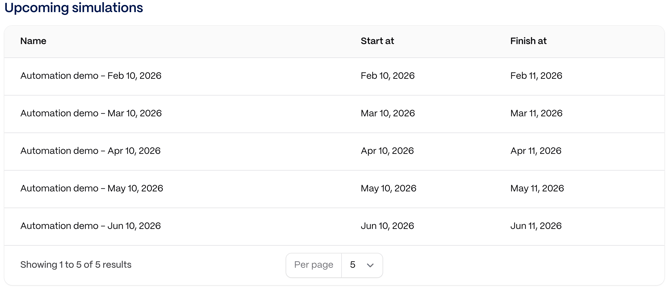
Inside your scheduled automation, you'll be able to see and edit any of the above options you'd pick alongside being able to see your scheduled simulations.